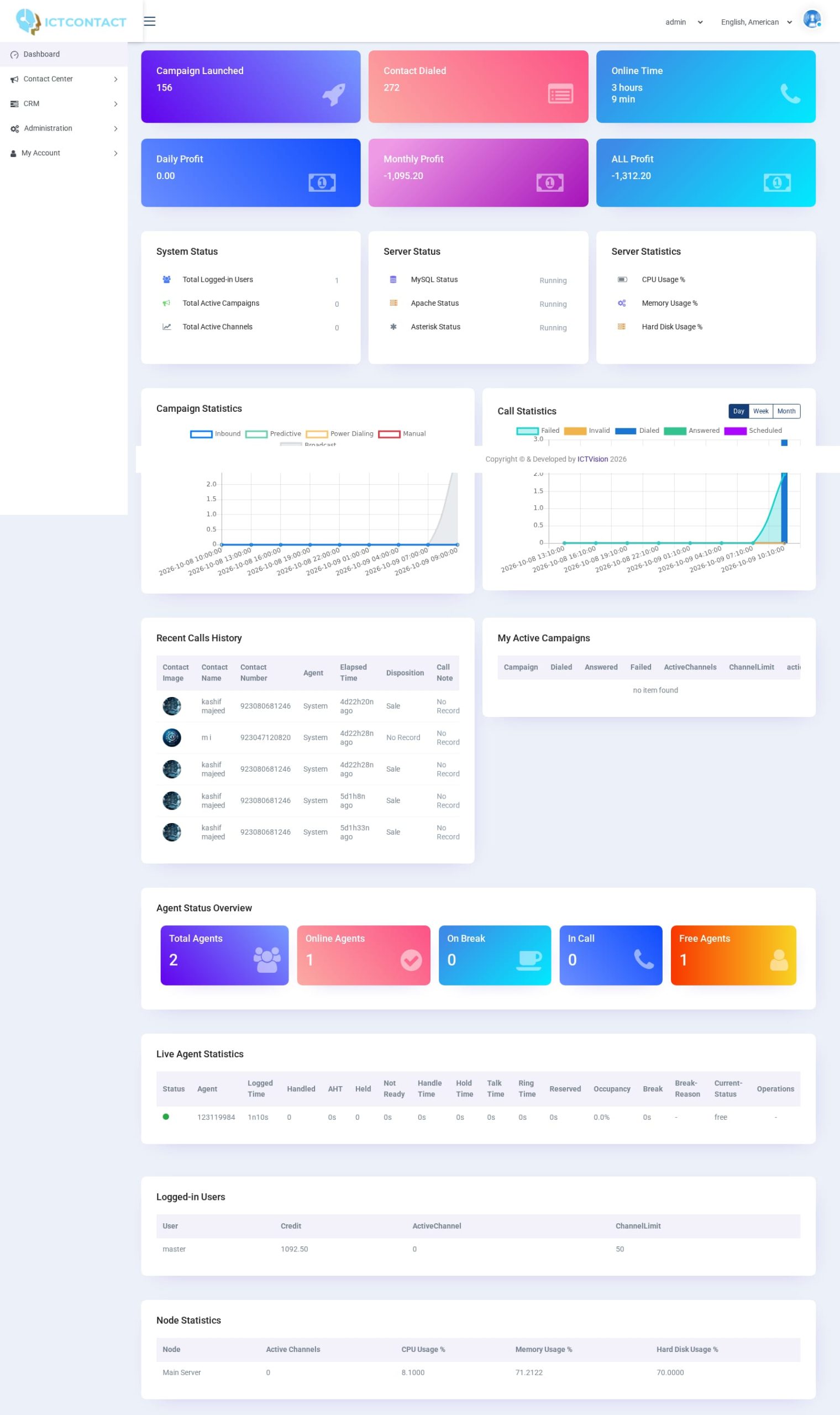
What each card on the dashboard means, and the few things it will not tell you.
It's the first page you see after Login as User. Think of it as a status board, not a report. The numbers tell you what's running right now and how the server is coping, and the only button at the top is Refresh. Some blocks only show for the admin account. A client account sees its own campaigns and agents. Here's the page from top to bottom.
Prefer to watch? Tutorial 7: Dashboard, supervisor panel and reports. The screens show the ICTContact name because ICTCRM runs on it.
Counter cards
There are three cards at the top:
Campaign Launched: how many voice and fax campaigns this account has created.
Contact Dialed: contacts dialed across those campaigns.
Online Time: total call time, shown as hours and minutes.
These are lifetime totals for the account. They aren't today's figures.The admin account also gets Daily Profit, Monthly Profit and ALL Profit. Profit is what clients were charged (their plan rate) minus what the calls cost on the trunk. So these cards only make sense once you've set up rates and routes under Billing.
System Status
You'll see Total Logged-in Users (admin only), Total Active Campaigns and Total Active Channels. Active Channels is the number of calls in progress by default at the moment the page loaded.
Server Status and Node Statistics
Admin only. Server Status tells you whether MySQL, Apache and Asterisk are up. Node Statistics shows CPU Usage %, Memory Usage % and Hard Disk Usage %. On a multi-node licence it turns into a table with one row per node and an Active Channels column.
Campaign Statistics and Call Statistics
Campaign Statistics (admin only) is a bar chart of calls per hour over the last 24 hours. It's split by dialing mode: Inbound, Predictive, Power Dialing, Manual and Broadcast.Call Statistics is a chart with Day, Week and Month buttons. Its series are Failed, Invalid, Dialed, Answered and Scheduled. Day shows the last 24 hours, hour by hour. Week and Month widen the window. Click a button to switch. The data's already on the page, so nothing reloads.
Recent Calls History
This table only appears once there have been calls. The columns are Contact Image, Contact Name, Contact Number, Agent, Elapsed Time (how long ago the call started, or Pending), Disposition and Call Note. Agent shows System when no person handled the call. That's normal for a broadcast.
My Active Campaigns
You get one row for each campaign that's active, starting or stopping. The columns are Campaign, Owner, Dialed, Answered, Failed, ActiveChannels and ChannelLimit.In the action column, an Increase Limit arrow and a Decrease Limit arrow sit either side of the current channel number. Use them to throttle a running campaign without opening it. There's also a View Campaign Details link.View Campaign Details opens a page for that campaign listing its live calls: Name, Phone, Status, Ring Time, Answer Time, Agent Name. Answered calls get [Hangup], [Listen], [Barge] and [End Monitoring] links, if your permissions allow them. Click the Back button to return.
Agent Status Overview and Live Agent Statistics
Agent Status Overview shows five cards: Total Agents, Online Agents, On Break, In Call, Free Agents.Live Agent Statistics is a table that refreshes itself every 5 seconds. The interval comes from the report refresh rate setting, which is 5000 ms by default. The columns are Status, Agent, Logged Time, Handled, AHT, Held, Not Ready, Handle Time, Hold Time, Talk Time, Ring Time, Reserved, Occupancy, Break, Break-Reason, Current-Status and Operations.When an agent is on a call, Operations shows the same [Hangup] / [Listen] / [Barge] / [End Monitoring] links. Otherwise it shows a dash. Want the same figures over a date range instead of live? Go to Reports > Agent Statistics.
Logged-in Users
Admin only. The columns are User, Credit, ActiveChannel and ChannelLimit. ChannelLimit is the client's Max Allowed Channels from Client Management. ActiveChannel is what their campaigns are using right now.
What the dashboard does not show
You won't find a card row for total calls, average handle time, occupancy, abandon rate, conversion or queue wait. There's no top agents table either. Occupancy and AHT do exist per agent, in the Live Agent Statistics table. Totals and history live under Reports.