Already on Salesforce, Zoho or Pipedrive? Pull your contacts in and push call results back.
ICTCRM talks to a CRM in two separate directions, and each one lives on its own screen. You pull contacts out of a CRM into a contact group under CRM > Customer > Contact Groups. You push call results back into a CRM, or into any other web service, under Contact Center > Messages > Integrations. You can use either one on its own.
Prefer to watch? Tutorial 8: Dispositions and CRM integrations. The screens show the ICTContact name because ICTCRM runs on it.
Direction 1: import contacts from a CRM into a Contact Group
Every contact group has a Group Type. The default is Internal Contacts, a plain list you fill from a CSV file or from another group. The other types are CRM feeds. When you pick one, the form shows that CRM's connection fields, and ICTCRM fetches the records from the CRM itself.
Go to CRM > Customer > Contact Groups and click Add new.
Under Group Description, fill in Title and Description.
Set Group Type to the CRM you want. The list has Internal Contacts plus the CRM entries your account has permission for (see the connector list below).
Fill in the fieldset that appears for that CRM. The fields are the CRM's own API settings. Here are three examples:
Pipedrive Feed Configuration: API Base URL (default https://api.pipedrive.com/api/v1), API Token, Import Limit (0 = unlimited), Page Size (default 100).
Salesforce Feed Configuration: Login URL, Consumer Key, Consumer Secret, Refresh Token, API Version, Object (Contact or Lead), Page Size (LIMIT), Import Limit (0 = unlimited). Agile CRM asks for Subdomain, Login Email and API Key. Most connectors follow one of these two shapes: an OAuth refresh token, or a static API key.
Click Save.
Two things catch people out here.First, the Import Contacts (Optional) and Scan for CNAM sections disappear as soon as you choose a CRM type. That's expected. A CRM group is filled by the feed, not by a file.Second, saving the group doesn't contact the CRM. The fetch runs when a campaign that uses this group starts. At that point the campaign daemon:
calls the feed,
pulls records page by page up to the Import Limit,
normalises the phone numbers and writes the contacts,
remembers which CRM record each contact came from,
puts them in the campaign spool.
So if the credentials are wrong, you'll find out in the campaign log, not on the group form. Check logs/campaign-<id>/daemon.log and logs/gui.log for lines starting with Creating instance of and Loading feed.Group Type is locked after the first save. If you want to switch a group from Internal to a CRM feed, create a new group.Lead Groups and Deal Groups don't offer CRM types. Their Group Type list has one entry (Internal Leads, Internal Deals).
Direction 2: push call results with an Integration
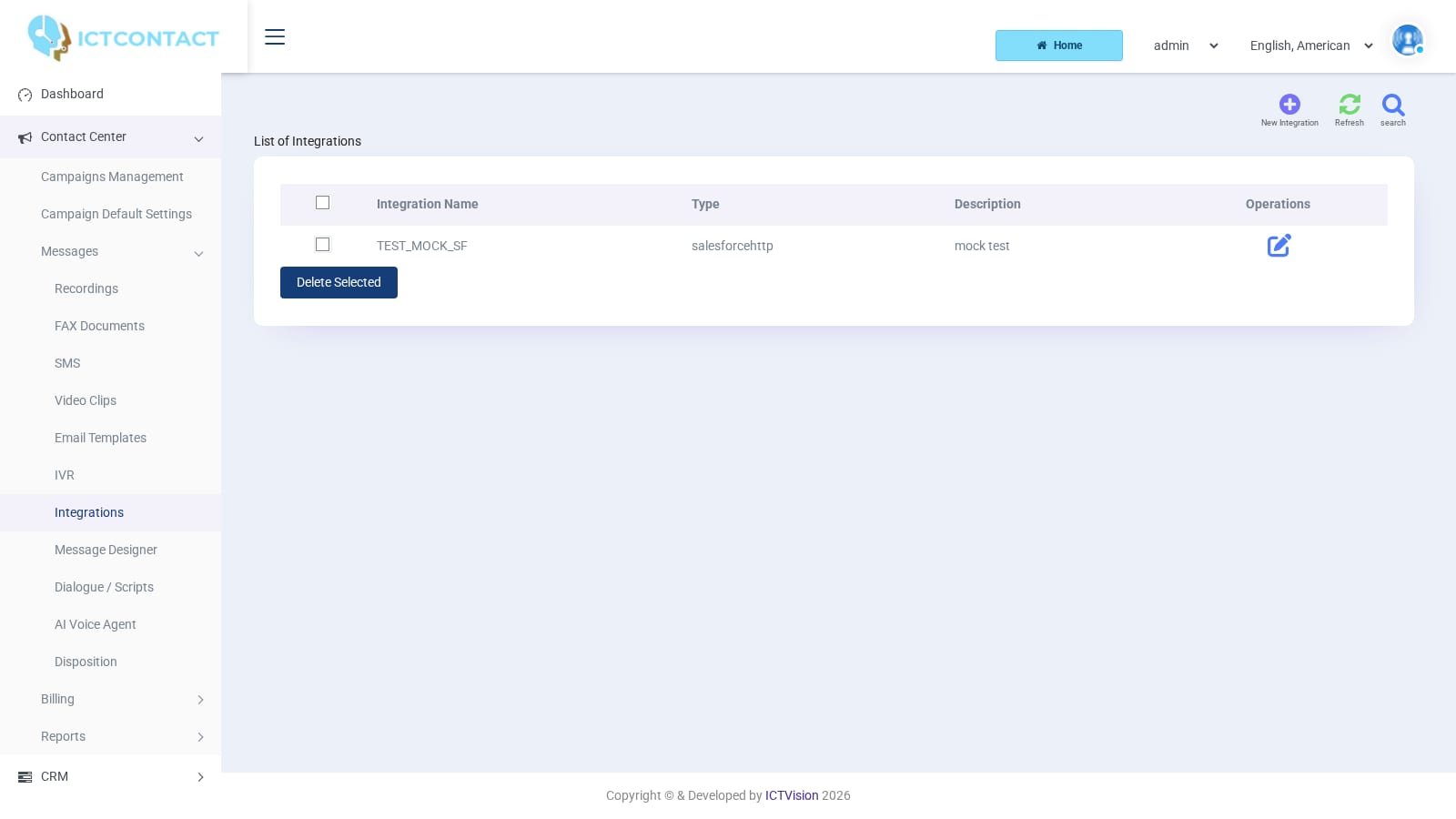
An Integration is a saved outbound request. The campaign daemon runs it at the end of a call and fills in tokens such as the contact's phone number and the call status. You create it once under Contact Center > Messages > Integrations, then attach it to a campaign, a feedback option or an IVR node.The list shows Integration Name, Type, Description and Operations (Edit). The top buttons are search, New Integration and Refresh. The form has Save, Reset and Cancel. Delete Selected removes the rows you've ticked. The search panel filters on Integration, Integration Type and Date.
Creating an integration
Click New Integration.
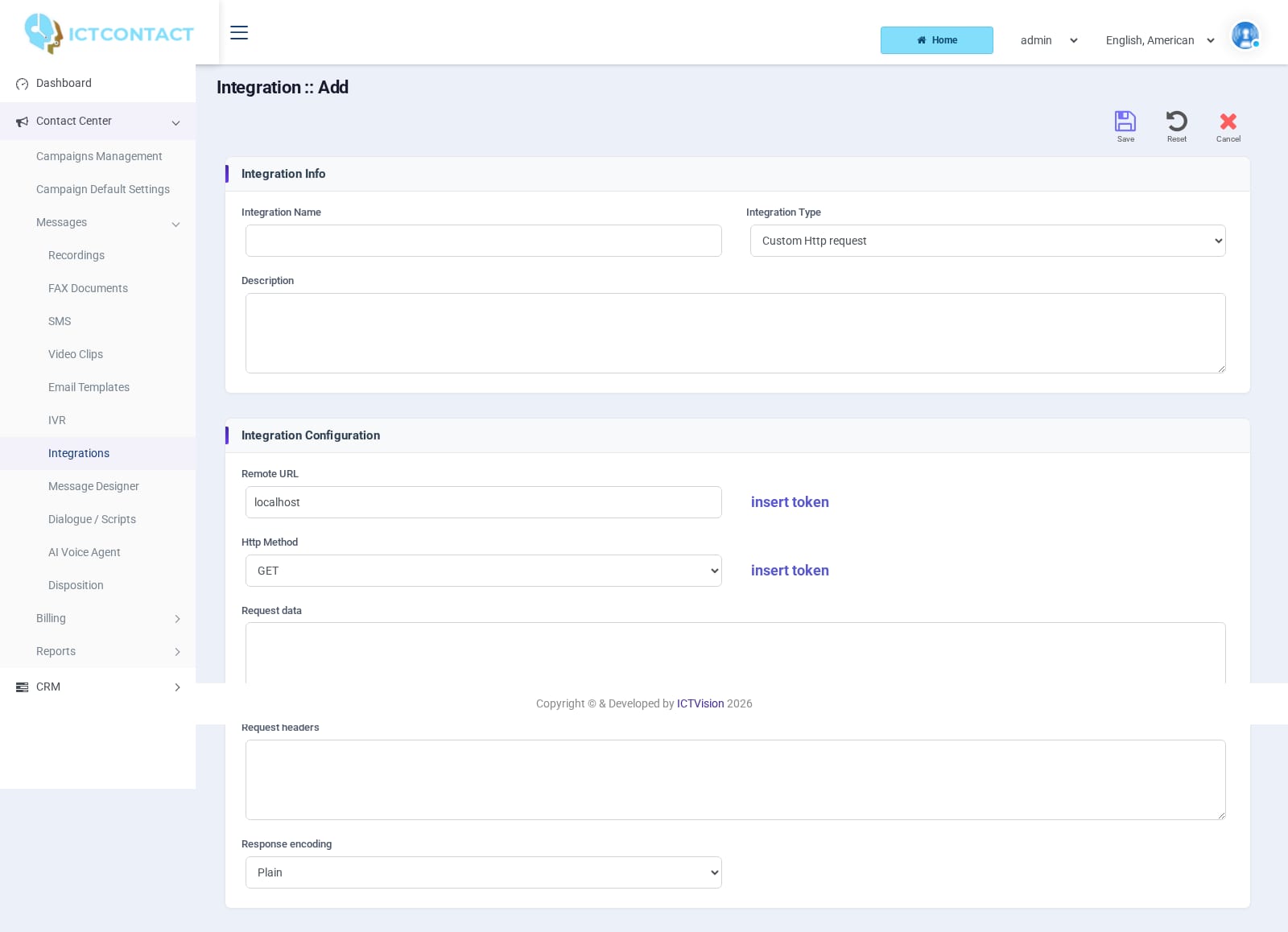
Under Integration Info, enter Integration Name (required), choose Integration Type and add a Description if you like.
Fill in the fieldset for the type you chose (details below).
Click Save.
You can't change Integration Type after saving. The field is hidden on the edit screen. If you picked the wrong type, create a new record.
The three built-in types
SOAP WSDL API. Integration Configuration has WSDL URL, SOAP Action, and nine Parameter# rows (Name / Value). In each row, type the parameter name, then either pick a token from the value dropdown or choose Custom value and type your own text. The Show available tokens link lists what you can insert. Request parameters and the SOAP reply are written to logs/gui.log as Soap request parameters: and Soap results:. A SOAP fault is logged as Soap error!.Custom Http request. Fields: Remote URL, Http Method (GET, POST, PUT, DELETE), Request data, Request headers, Response encoding (Plain or JSON Encoded). The insert token button next to Remote URL and Request data drops a token at the cursor. Request data is only sent for POST and PUT. Put one header per line in Request headers, for example Content-Type: application/json. Response encoding is stored, but the current code doesn't apply it. The reply is logged as text either way. For every run you'll see Http request url:, Http request body: and Http results: in logs/gui.log.Queue for callback. Callback Configuration has Callback Campaign (a dropdown of your campaigns), Schedule After and Expiry After (both duration pickers). When it runs, the contact is inserted into the selected campaign as a new spool entry. If the call came through an agent, the new entry keeps the same extension. It's handy for "call me back later" from a survey or an IVR key press. The log line is Callback saved as spool_id:.
The CRM connectors
The Integration Type list on the current build includes these connectors: Agile CRM, ActiveCampaign, Apptivo CRM, Capsule CRM, Close CRM, Copper CRM, Creatio CRM, Dynamics 365, Freshsales, Keap (Infusionsoft), Less Annoying CRM, Monday.com, Streak CRM, YetiForce CRM, Zendesk Sell, Vtiger CRM, Salesforce, Zoho CRM, SugarCRM, Pipedrive. Each entry only appears if your user has the matching permission, so a tenant may see fewer.Each connector shows a fieldset named " Configuration". The fields are the CRM's API credentials plus a module choice. Some examples:
API Base URL, API Token, Custom Status Field Hash (optional), Create Pipedrive Activity for each call (Yes / No)
Agile CRM
Subdomain, Login Email, API Key
Here's what a CRM connector does on each call, in order:
It receives the contact id, campaign id, spool id, call status and disposition id from the daemon.
It reads the local contact (name, phone, email), the campaign name, the agent, and the disposition with its comments, call duration and recording URL.
It looks for the CRM record it already knows from the import, if the contact came from that CRM. If there isn't one, it searches by phone, then by email.
If nothing matches, it creates the record.
It updates the record and adds a note or activity carrying the call result.
It remembers the record it found, so the next call doesn't have to search again.
Disposition mapping. Before sending, the connector can swap your disposition name for the value your CRM expects. There's no screen for this yet, so open a support ticket and we'll set the mapping up for you. Without one, the CRM gets the ICTCRM name as it is. Pipedrive also needs the Custom Status Field Hash filled in before it writes the mapped value to a custom field. Leave it blank and only the activity is created.Connector log lines go to logs/gui.log, prefixed with the type in capitals, for example [ZOHOCRMHTTP] authenticate FAILED http=401.
Where an integration is attached
The Integration list only stores the request. Nothing runs until a campaign or IVR refers to it.Integration Campaign (Contact Center > Campaigns Management > Add, card "Integration Campaign" under Voice Broadcasting). This campaign type plays recorded offers and sends the recipient's response to your API. Its wizard has:
Integration Offers: the number of offers, then for each offer an ID, Introduction and Detail recording.
The general messages: Greeting message, Offer end message (main menu), Detail end message (sub menu), Confirmation message, Thanks message, Wrong message.
The fieldset Integration APIs, with one required field, Integration, where you pick the saved record.
Dial method is fixed to automatic for this type.Feedback Campaign (SMS). Each feedback option row has Description, Filter Keywords and an Action / Integration dropdown. When an inbound reply matches the keywords, that integration runs.IVR node "Integration API" (Contact Center > Messages > IVR, designer toolbox). The node's only setting is Integration. It fires when a call reaches the node, either through an IVR Campaign using that IVR or through a DID whose DID Forwarding target is that IVR.On this build the generic campaign wizard has no integration field of its own (the old "Request (Call End)" step is switched off). The Disposition form has no integration fields either. If you want a result pushed after an agent call, route the campaign through an IVR with an Integration API node, or use an Integration Campaign.
Troubleshooting
Nothing arrives at the CRM. First confirm the integration is attached somewhere (see above). Then open logs/gui.log and search for the integration's request lines. If there aren't any, the daemon never called it. If there are, the reply body is logged right after, and it usually names the problem (401 for bad credentials, 404 for a wrong base URL).
OAuth connectors log authenticate FAILED. This happens on Zoho, Salesforce, Dynamics 365 and others using a refresh token when that token has been revoked. Mint a new one in the CRM and paste it into the integration.
A CRM feed group stays at zero contacts. The pull runs when a campaign starts, not when you save. Start a campaign with that group and read logs/campaign-<id>/daemon.log.
The disposition shows in the CRM under the ICTCRM name. That's the default. Open a ticket and ask for a disposition mapping if the CRM needs its own values.
Custom Http request with POST sends nothing. Request data is only used for POST and PUT. Check the Http Method, and check that the body uses tokens the insert token list knows.
The integration runs but the row isn't found in the CRM. The lookup goes by stored remote id, then phone, then email. Phone numbers are compared after stripping everything except digits. So if a CRM stores numbers with a different country prefix, they won't match, and a new record is created instead.
Open source tools
ICT Innovations also publishes an n8n node, the ICTAgent Chrome extension and tvbench as open source at github.com/ictinnovations. They connect to this same REST and integration surface, and they're maintained separately from the product.