
Reports Guide
Call records, recordings, disposition counts and live agent stats, and which of them you can export.
Contact Center > Reports has six pages: Overview, CDR, Disposition Report, Call Recording, Live Statistics and Agent Statistics. Each one is a filtered table. You open the filter from the search button in the top bar (a magnifier icon). Where a page supports them, the top bar also holds the Refresh, Export and Print buttons. Export writes a CSV of the rows that match the current filter. Print opens a plain copy in a new window. Dates in every filter use a date range picker.
Prefer to watch? Tutorial 7: Dashboard, supervisor panel and reports. The screens show the ICTContact name because ICTCRM runs on it.
As admin you'll see two extra filter fields on most pages, Company and Client, so you can narrow the rows to one tenant. A client account only ever sees its own rows. On this build the Company text field is labelled "Commpany" on the CDR and Agent Statistics pages. It's the same field.
Overview
This page shows totals per campaign and time slice. It's the quickest answer to "what did yesterday cost". Columns: Date / Time, Campaign, Total Calls, Amount (billed to the client), Net Amount, Total Cost (what the trunk charged), and an Action icon that opens the detail view for that row.
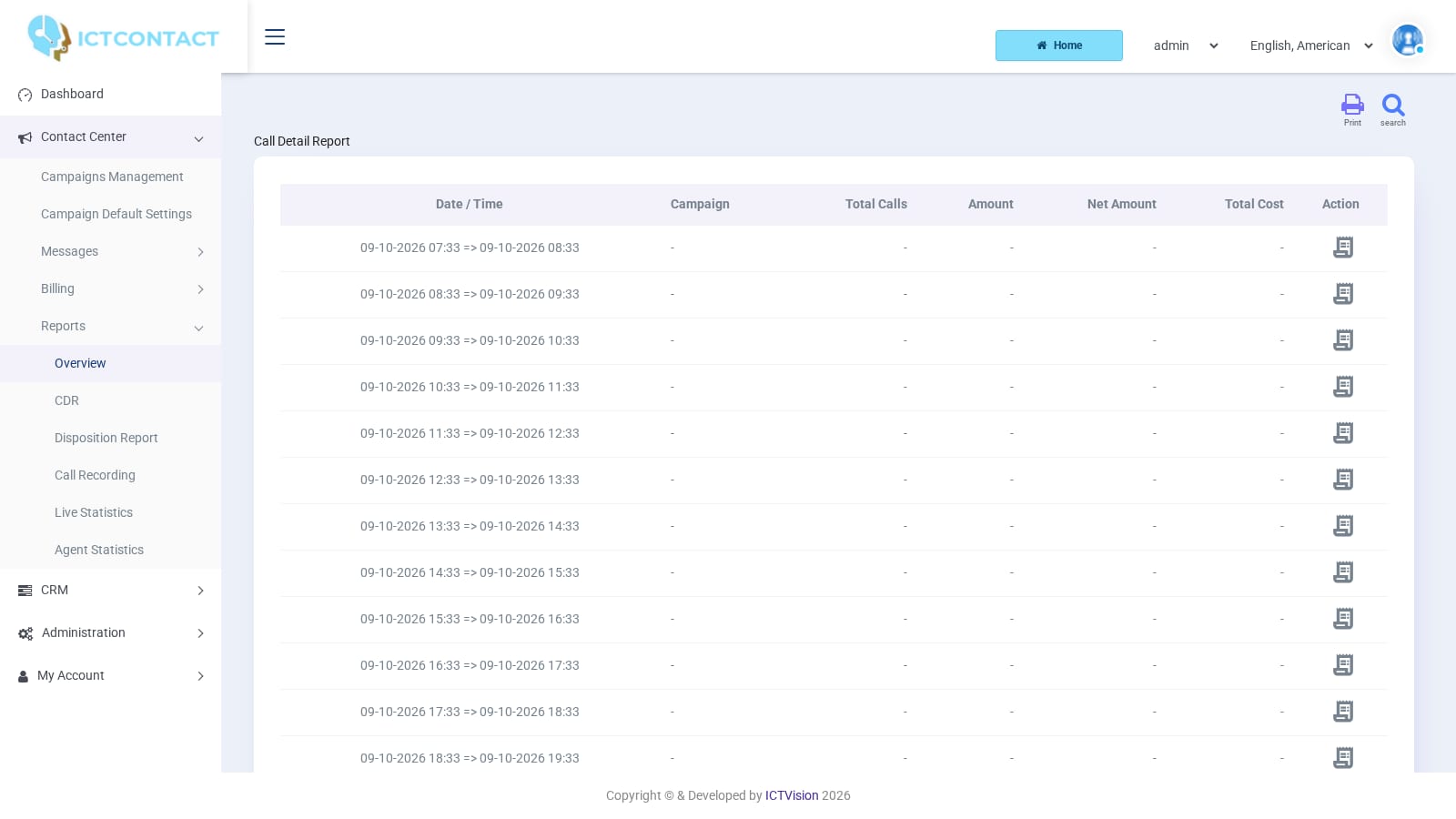
The filter is the same form as the CDR page (see below). The detail view lists the individual calls behind a total: Date / Time, First Name, Last Name, Contact, Amount, Rate, Cost, and a [Call Detail] link per call. Use Back to CDR Summary to return. Buttons: search, Export, Print.
CDR
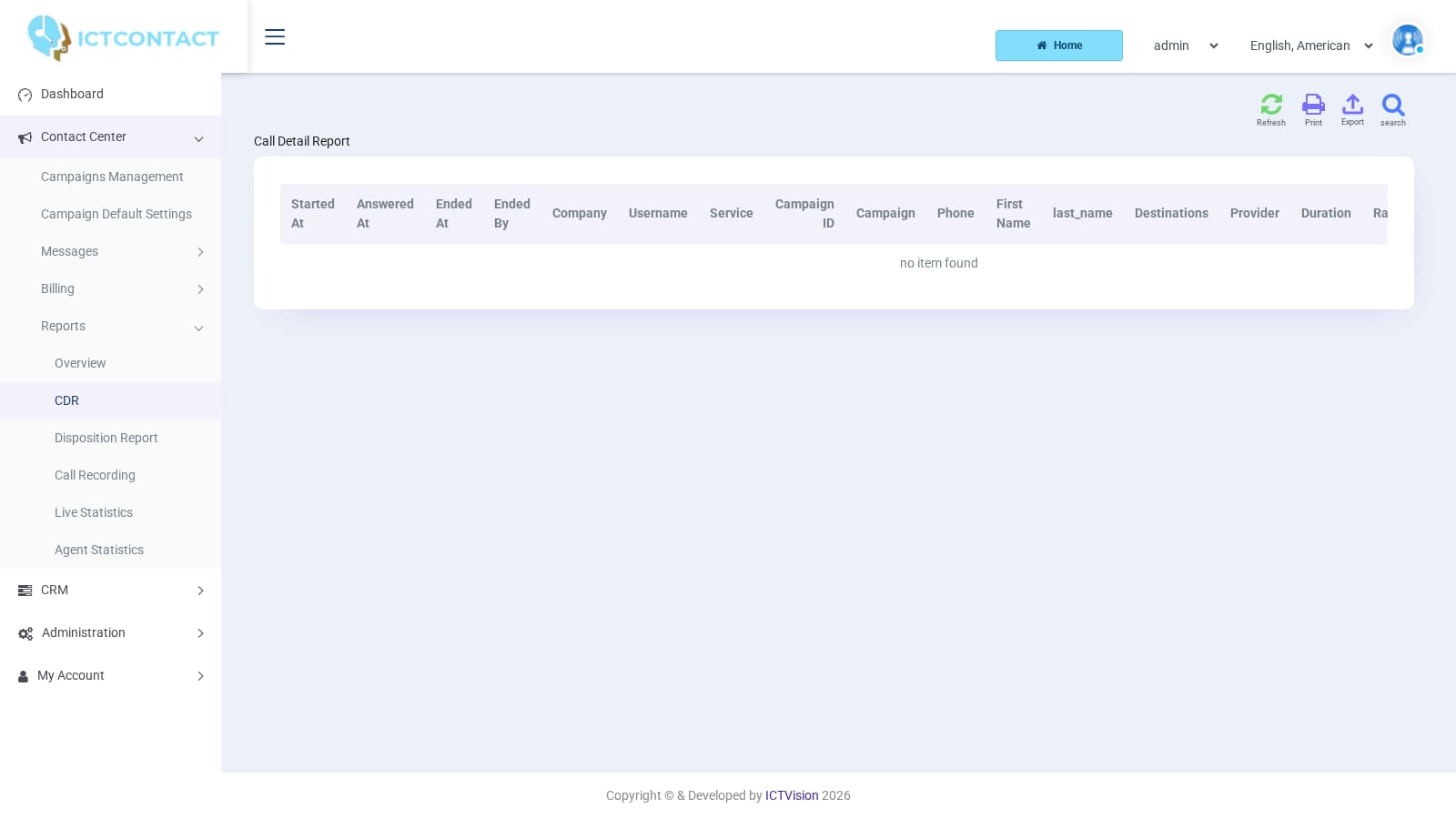
You get one row per call attempt. Columns: Started At, Answered At, Ended At, Ended By, Company, Username, Service, Campaign ID, Campaign, Phone, First Name, last_name, Destinations, Provider, Rate, Cost, Status, Response. Provider is the trunk the call went out on. Response is the gateway's result text, so that's where you look when Status says failed.
Filter fields:
| Field | Options |
|---|---|
| Company, Client | admin only |
| Campaign | [Any Campaign], [Standard Calls] (calls made outside a campaign, for example manual agent dials), or one campaign |
| Agent Number | [Any Agent / Extension] or one extension |
| Call Duration | a number of seconds plus greater than / less than |
| Call Type | Any Call Type, incoming, outgoing |
| Did | [Any did] or one DID (used with incoming) |
| Date | date range |
Buttons: search, Refresh, Export, Print. In Campaigns Management, the Reports column has a [CDR] link that opens this page already filtered to that campaign.
Disposition Report
This shows what agents (or the AI agent) marked each call as. Above the table there are two charts: Disposition Distribution (Interested, Not Interested, Sale, Callback, Other, No Disposition) and Disposition Status. Columns: Date, Call-ID, Disposition, Comments, Phone, Contact Name, Agent Name, Campaign, Sentiment, Schedule Time, plus Username for admin. There's also an Action column with View Call Detail, Download Recording and Play Recording icons when a recording exists.
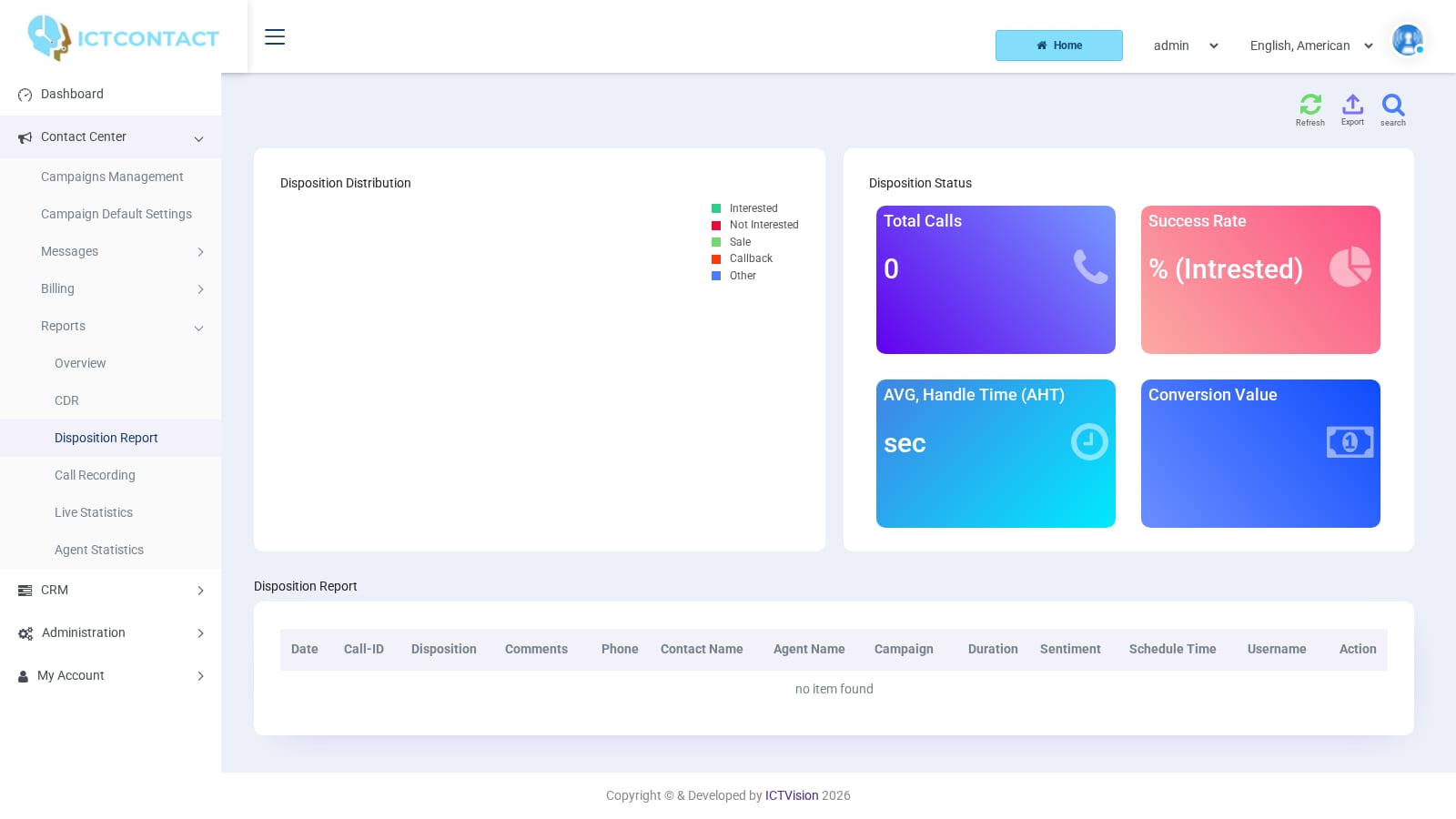
Filter fields: Client (admin), Campaign, Agent Number, Disposition ([Select Disposition] or one of the dispositions defined under Messages > Disposition), Phone Number, Call Duration (All Duration, 1 Minute, 2 Minutes, 3 Minutes, 4 Minutes, 5 Minutes, 10 Minutes, 30 Minutes with greater than / less than), Date. Buttons: search, Refresh, Export, Print.
Call Recording
This lists every call that produced a recording file. Columns: First Name, Last Name, Contact, Campaign Name, Date / Time, Operations. The table has no agent column. If you need one agent's calls, filter by Agent / Extension instead.
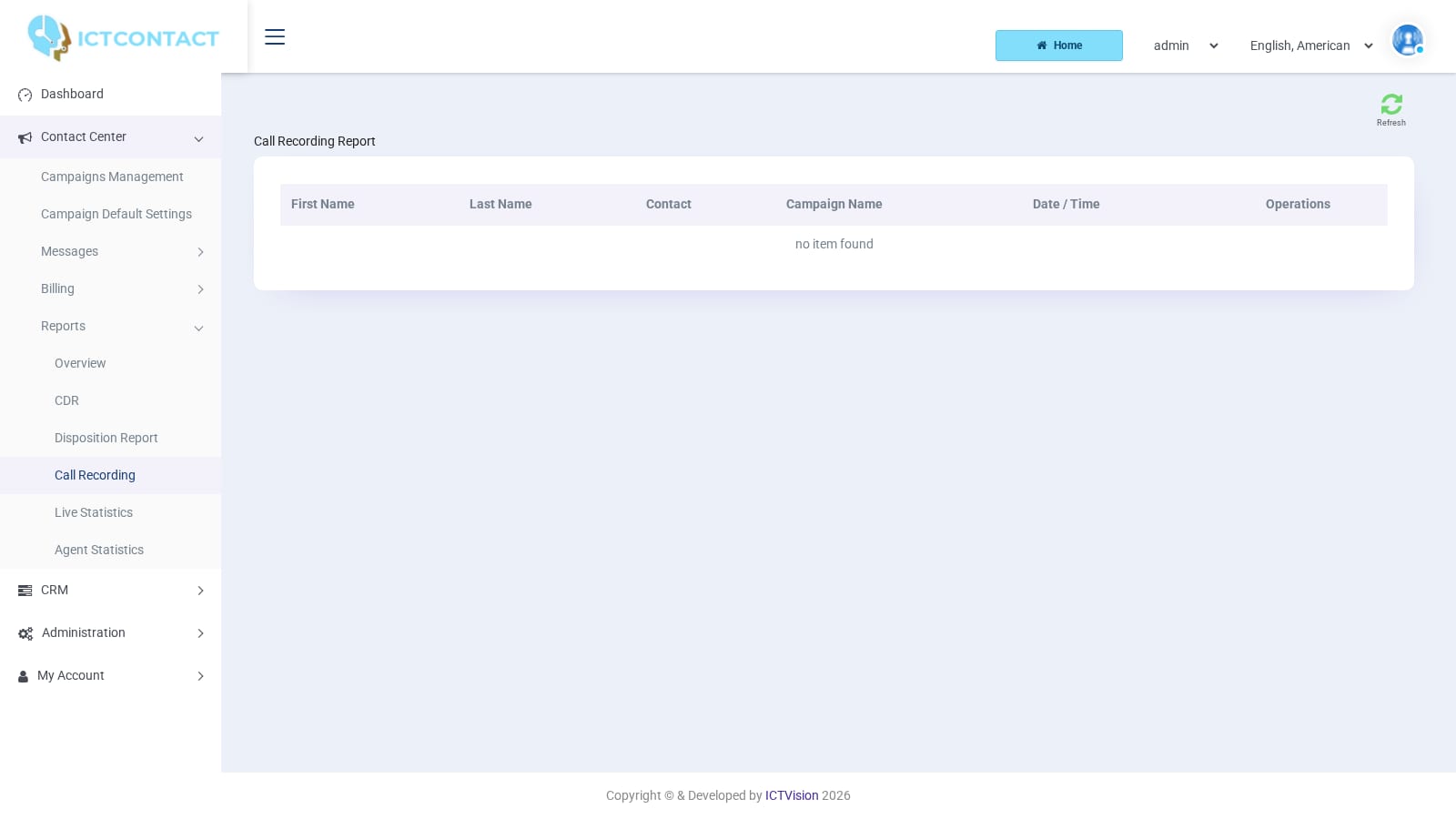
Operations has Download Recording and Play Recording (plays in the browser). If your role has the call reschedule permission, you'll also see a Call Rescheduling icon. Reschedule offers After 10 Minutes, After 30 Minutes, After One Hour, Next Day, Next Week or [Custom Schedule] with a Date and At time, and it puts the contact back in the campaign queue.
Filter fields: User (admin), Agent / Extension, Campaign, Customer Contact, Call Duration, Date. The filter has three buttons: Search, Search / Download and Reset. Search / Download zips every recording that matches the filter and sends you the archive. That's how you pull a day's recordings in one go. The top bar has search and Refresh. There's no Export or Print on this page.
Live Statistics
This shows who's logged in right now. The page reloads itself every 5 seconds (report refresh rate, 5000 ms by default), so you can leave it open on a second screen. Columns: Campaign, Agent, Extension, Status (Ready, or Not Ready with the break reason in brackets), Duration (how long they've been in that status), Logged At, Login Age, Operations.
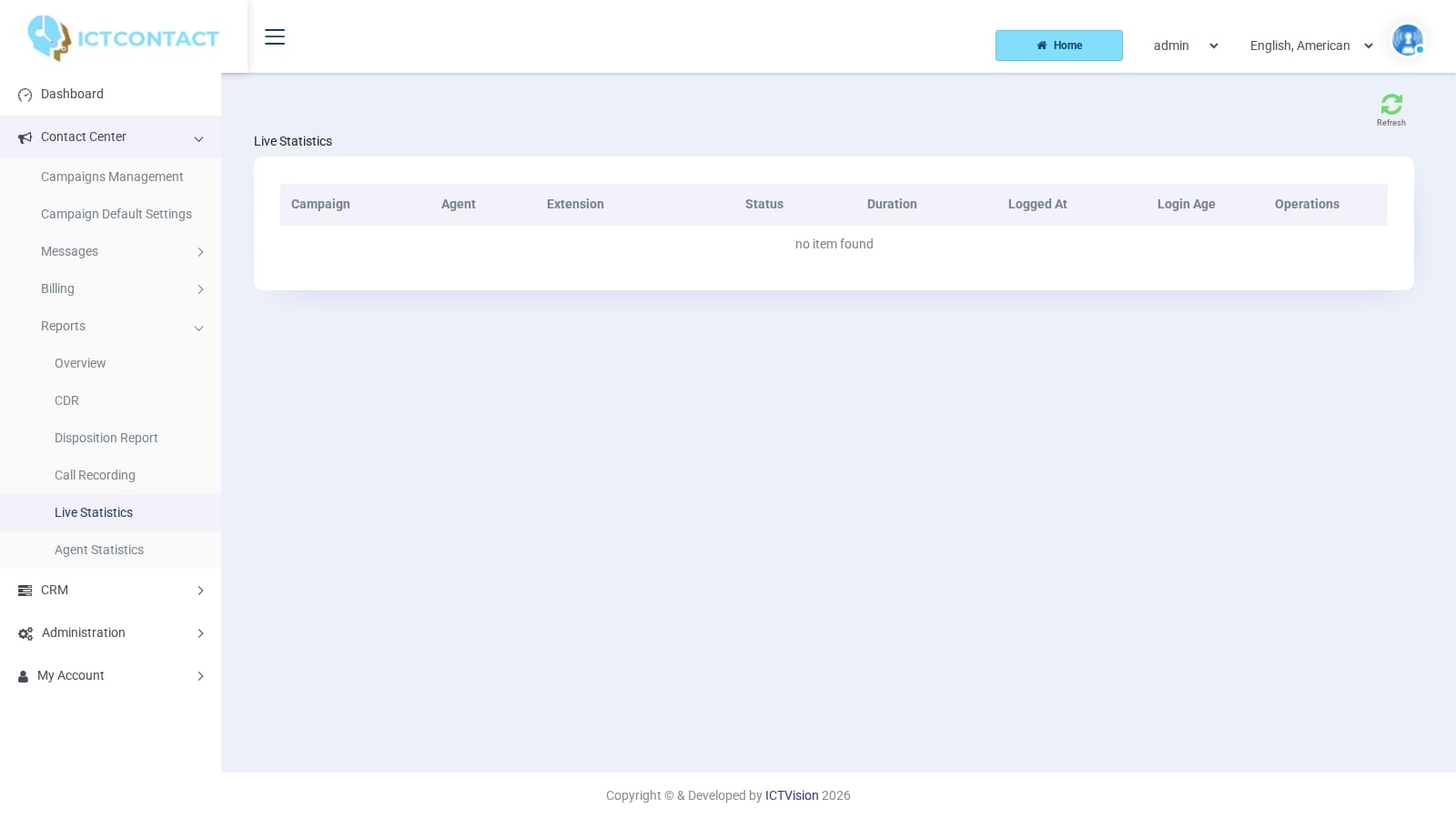
Operations has a single icon, Force logout this agent. Use it for an agent whose browser went away without logging out. The only top button is Refresh. There's no filter and no export because the data is live.
Agent Statistics
You get the same counters as the dashboard's live table, but for a date range and per login session. Columns: Agent, Login, Logout, Logged Time, Handled, AHT, Held, Not Ready, Handle Time, Hold Time, Talk Time, Ring Time, Reserved, Occupancy, Break, Break-Reason. Times are durations in hours, minutes and seconds. Occupancy is handle time over logged time.
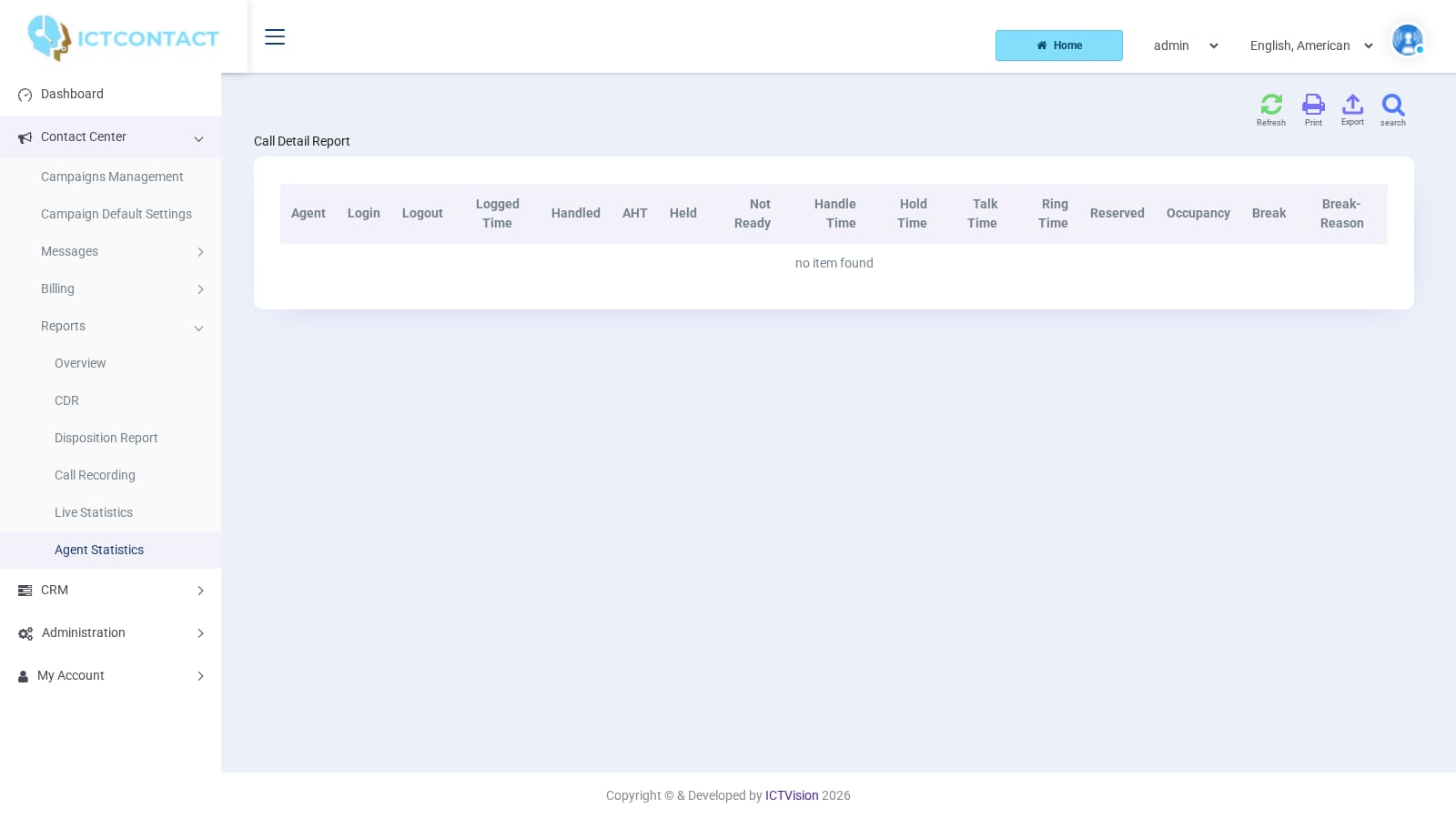
Filter fields: Company and Client (admin), Agent / Extension, Date. Buttons: search, Refresh, Export, Print.
Click the agent name or the login time in a row to open the Agent Detail Report for that session: Dialed At, Contact, Campaign, Connected At, Talk Time, Hold Time, Wrapup Time, Call Duration, Ended By, Ended At, and a [Call Detail] link per call. The detail page has its own Export and Print buttons, plus a Back button to the summary.
Which pages export
| Page | Export | Other | |
|---|---|---|---|
| Overview | yes | yes | detail view per row |
| CDR | yes | yes | |
| Disposition Report | yes | yes | charts, play / download recording |
| Call Recording | no | no | Search / Download zips recordings |
| Live Statistics | no | no | auto refresh, force logout |
| Agent Statistics | yes (summary and detail) | yes | drill down per login |
Stuck on something this guide does not cover? Open a support ticket or browse the other guides.
Try the live demoSee pricing