
Campaign Types and Modes
Which campaign card to pick for the job, and how each dialing mode decides when to call.
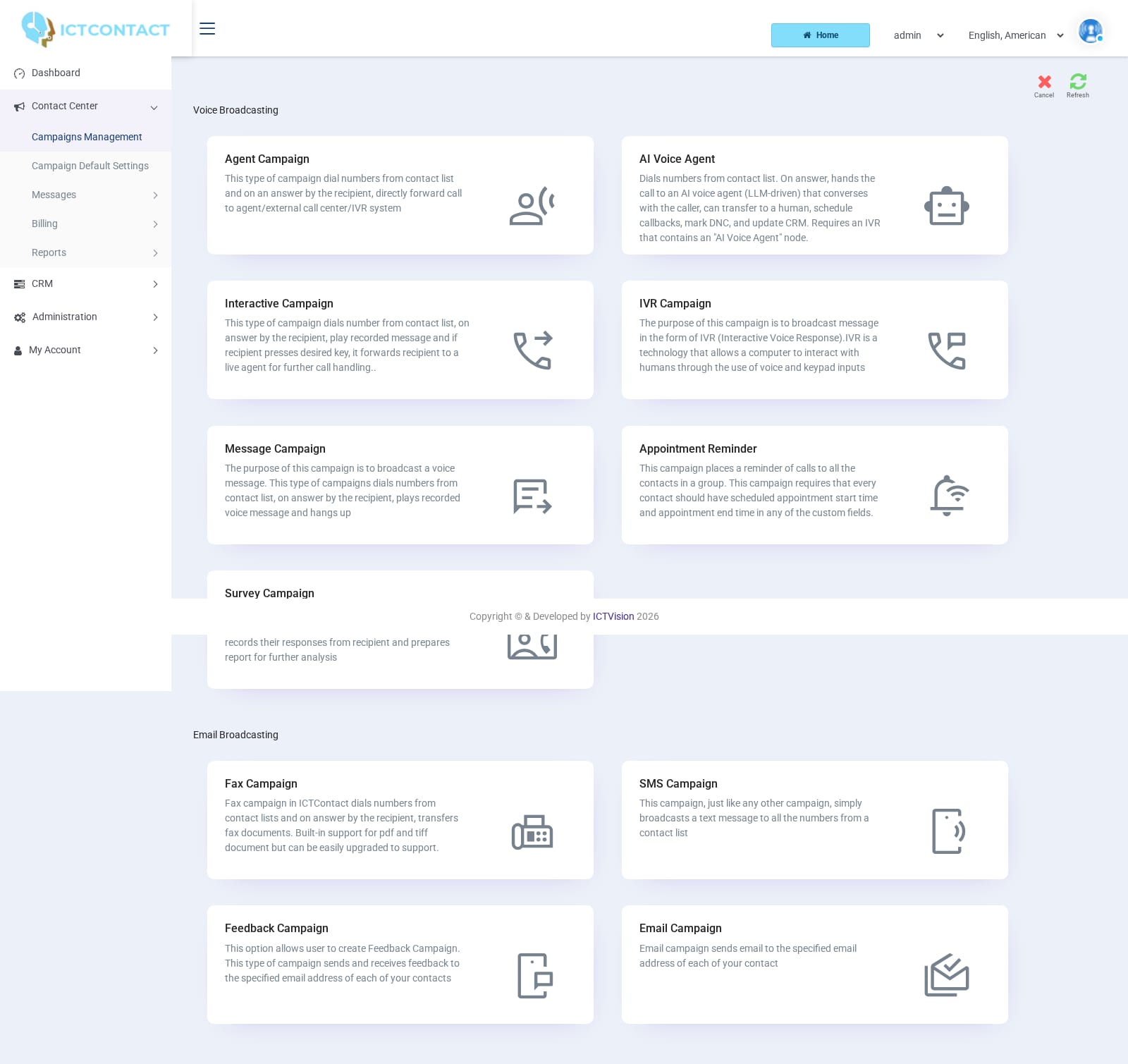
Every outbound run, inbound line and message blast lives under Contact Center > Campaigns Management. Click Add new and you land on the type cards. They're grouped under Voice Broadcasting and under Fax SMS, Email, & Video Broadcasting.
Prefer to watch? Tutorial 4: Campaign types and modes explained. The screens show the ICTContact name because ICTCRM runs on it.
Pick a card and a wizard opens with a tab for each step: Basic Configuration, Contact, the type's own configuration step (Message Campaign Configuration, Agent Campaign Configuration and so on) and a final settings step. Previous and Next sit at the bottom of each step. Save is at the top right.
This page covers the shared steps once, then what each card adds. That way you can decide which one to use before you start clicking.
Step 1: Basic Configuration
General Configuration holds these fields:
Name (required). You can't change it later. On Edit it's shown as plain text.
Dialing Mode: Inbound Dialing, Broadcasting, Predictive Dialing, Progressive Dialing, Preview Dialing, Manual Dialing. The help text under the field gives one line per mode:
- Inbound: Recommended for inbound campaigns.
- Broadcasting: Automatic dialing, recommended for message broadcasting.
- Predictive: Automatically dial excessive no. of contacts to keep agents busy.
- Progressive: Automatic dialing for agents, one contact per agent.
- Preview: Automatic and agent assisted dialing, one contact per agent.
- Manual: Manually dial random number in campaign.
Most card types preset the mode and grey the field out. Only the Agent Campaign lets you pick between the four agent modes. The field is hidden on Edit.
Select Trunk. You'll only see this if your account has dedicated trunks assigned, and the first choice is [Use any available trunk]. Everyone else gets no trunk field here. For them, Billing > Routes chooses the trunk.
Caller ID Type: User CallerID (shown as [User CallerID (DID)] when DIDs are assigned to the account), Anonymous CallerID, [custom], Random CallerID List, Sequential CallerID List. Which ones appear depends on your account's caller ID permissions. If only one is permitted, the field is hidden. The help text says CallerID will not effect inbound calls.
Caller ID and Caller Name. Each has a Show available tokens link that inserts a contact field (for accounts with that permission). If you pick a list type, the single value is replaced by a CallerID List box.
Step 2: Contact
Source: Lead, Deal or Contact. This decides which groups the next field offers.
Contact Type: File or Group. File shows Upload contact's File (click more ... for extra files) and builds a group from the upload. Group shows Contact Group (required). You can't change either on Edit.
Contact List Closure. This is the campaign mode. Here are the choices, with the exact descriptions printed under the field:
- Conclude Campaign: Stop and mark as completed the current campaign after processing all the contacts.
- Wait Inbound: Process contact if there is any, then wait for incoming requests. This is how you run an inbound line. Forward a DID to the campaign and it answers calls (or texts) for as long as it's active.
- Wait Contacts (API): Connects with all available contacts, and then keep waiting in background for new contacts. Contacts pushed over the REST API are dialled as they arrive. Repeat Contacts is forced to 1 in this mode.
- Repeat Contacts: Re-attempt the same contact group / list multiple times.
Wait Inbound and Wait Contacts (API) only appear when your licence includes the inbound and API modules.
Repeat Contacts: how many times the group is run (default 1).
Delay: the pause between runs. Choices are [No Delay], 5 Minutes, 10 Minutes, 30 Minutes, 1 Hour, 2 Hours, Until next schedule.
The Appointment Reminder and Feedback types set the closure themselves, and they hide or grey out the field.
Last step: the settings
Every voice and fax type ends with a settings step. On screen it's labelled "Advacne Configuration". That's a typo in the product, so pass it on to the developer. It's called "Settings" on the Integration Campaign and "Agent Campaign Retry" on the Agent Campaign. The fields are:
- Max. Concurrent Channels (required). How many calls run at once. The default comes from Campaign Default Settings (2 by default).
- Max. Retries: [Disabled], or 1 up to the system limit (5 here).
- Suggested dialing order: Repeat primary, Repeat primary and secondary, Repeat primary, secondary and tertiary, Repeat from primary to quinary. It decides which of the contact's phone fields get tried on retries.
- Max. Call Duration in seconds (required, default 600).
- Max.ring time in seconds (required, default 45).
Once the campaign exists, Max. Retries and Suggested dialing order disappear from the form.
Where a type offers AMD, it comes as a pair: Action on AMD ([Disabled], Hangup, Leave Message, plus Leave Reminder on the reminder type) and the recording to leave. Action on DNC ([Disabled]/[Enabled]) lets the contact press 9 to be removed from the list.
There's no schedule step in the wizard on this build. A campaign starts when you click the Start Campaign icon in the list. It stops when it finishes (Conclude Campaign) or when you click Stop Campaign. The start and stop schedule fields and the 3rd party integration step from older versions are commented out in the code.
The twelve cards
Voice Broadcasting:
Agent Campaign. Dials the list and, when someone answers, passes the call straight to an agent, an external call centre or a skill group. Agent Campaign Configuration has:
- Action on AMD
- Dialogue / Script (a script the agent sees)
- Contact URL (a page the agent's browser opens with the contact)
- queue settings: Ring Strategy (Ring All, Least Recent, Fewest Calls, Random), Max Wait Time, Agent Timeout, Wrap-Up-Time
- Dialing Pace (Relaxed, Steady, Moderate, Hasty, Rapid)
- Agent / Operator Extension, or [Assign Multiple Agent] with an Agents list
Dialing Mode only offers the four agent modes, and Wait Inbound isn't offered.
Message Campaign. Plays one recording and hangs up. Message Campaign Configuration: Message Recording, Introductory Message ([Disabled]/[Enabled] plus a recording), Action on DNC, Action on AMD, and Voice Disclaimer when disclaimers are enabled for your account. Dialing Mode is preset to Broadcasting.
Interactive Campaign. Plays a recording and transfers to an agent when the contact presses a key. Fields:
- Message Type (Message Broadcast only, Forward to Agent on answer, IVR with forward to Agent, IVR with forward to Agent on key press)
- Message Recording, Dialogue / Script, Contact URL, Introductory Message, Action on DNC
- Required input key ([Auto Transfer] or a key 0 to 7)
- Action on AMD, Voice Disclaimer
- then an Agent section and Campaign Agents, with the same queue settings as the Agent Campaign
Dialing Mode is preset to Predictive Dialing.
IVR Campaign. Runs an IVR you drew in the IVR designer on each answered call. IVR Campaign Configuration: Select IVR. Dialing Mode is preset to Broadcasting. It's also the type you use for an inbound voice line, with Contact List Closure on Wait Inbound.
Survey Campaign. Asks a series of recorded questions and stores the answers.
- Voice & General Options: Message Recording, Introductory Message, Action on DNC, Action on AMD.
- Survey Campaign Configuration: Survey Questions (how many). For each question you set a recording, the answer type (DTMF Response or Voice Response) and an answer duration. For each key you set a label (Yes, No, Not sure, [Custom], [not in use]) and a next step ([Default], [Transfer to Agent], [End Survey], [Hangup Call]).
- Survey End: End / Goodbye Message.
Dialing Mode is preset to Broadcasting.
Appointment Reminder. Calls each contact with a message built in Message Designer. The Contact step is renamed Appointment and gains Reminder Message. Reminder Campaign Configuration: Appointment Type (Group Appointment or Individual Appointments), Appointment Start Field, Reminder Call Time (hours before), Appointment Stop Field, Reminder Expiry Time, then Action on DNC and Action on AMD with the extra Leave Reminder choice. See the Message Designer Guide.
Integration Campaign. A recorded offer menu whose results are posted to one of your Integrations.
- Integration Offers: how many, and for each offer an ID, Introduction and Detail recording.
- Integration general messsage (as spelt on screen): Greeting message, Offer end message (main menu), Detail end message (sub menu), Confirmation message, Thanks message, Wrong message.
- Integration APIs: Integration.
- General Options: Action on DNC, Action on AMD.
Dialing Mode is preset to Broadcasting.
AI Voice Agent. The same wizard as the Interactive Campaign, with a notice at the top showing how many AI personas your account has. Select an IVR that contains an AI Voice Agent node. See the AI Voice Agent Guide.
Fax SMS, Email, & Video Broadcasting:
SMS Campaign. Sends one text to every number. SMS Campaign Configuration: Text Message (from Contact Center > Messages > SMS) and SMS Disclaimer when enabled. No Wait Inbound.
Feedback Campaign. An inbound SMS campaign. Contacts reply with a keyword and the reply is matched to an option. Feedback Campaign Configuration: Feedback Options (how many, up to 9), and for each option a Description, Filter Keywords and an Action / Integration. Dialing Mode is preset to Inbound Dialing and Contact List Closure to Wait Inbound.
Email Campaign. Sends a template to every email address. Email Campaign Configuration: Email Template (from Contact Center > Messages > Email Templates) and Email Disclaimer when enabled. No Wait Inbound.
Fax Campaign. Sends a document to every fax number. FAX Campaign Configuration: FAX Document (from Contact Center > Messages > FAX Documents) and Fax Disclaimer when enabled. No Wait Inbound.
Note for the webmaster: the code has a second card titled "Message Campaign" (the voice_onepage type). On this build that card is commented out and doesn't render, so only one Message Campaign card appears. Flag the duplicate title to the developer in case it's re-enabled on another build.
The campaign list
The columns are #, Campaign Name, Type, Progress, Status, Operations and Reports. Depending on the status, Operations offers Monitor Live statistics, Start Campaign, Stop Campaign, Cancel Campaign, Edit Campaign, Copy this campaign as new campaign and Conclude current campaign and mark it as completed. Reports has View Campaign results. Statuses run pending, starting, active, stopping, completed.
Stuck on something this guide does not cover? Open a support ticket or browse the other guides.
Try the live demoSee pricing