
FAX Documents Guide
Upload a document once and every fax campaign can send it.
A Fax Campaign can't send anything until there's a document in the library. Contact Center > Messages > FAX Documents is that library. You upload a file once, ICTCRM converts it to a fax-ready TIFF at the quality you choose, and every Fax Campaign picks from the resulting list. The Fax Disclaimer settings live on the same screen.
The list
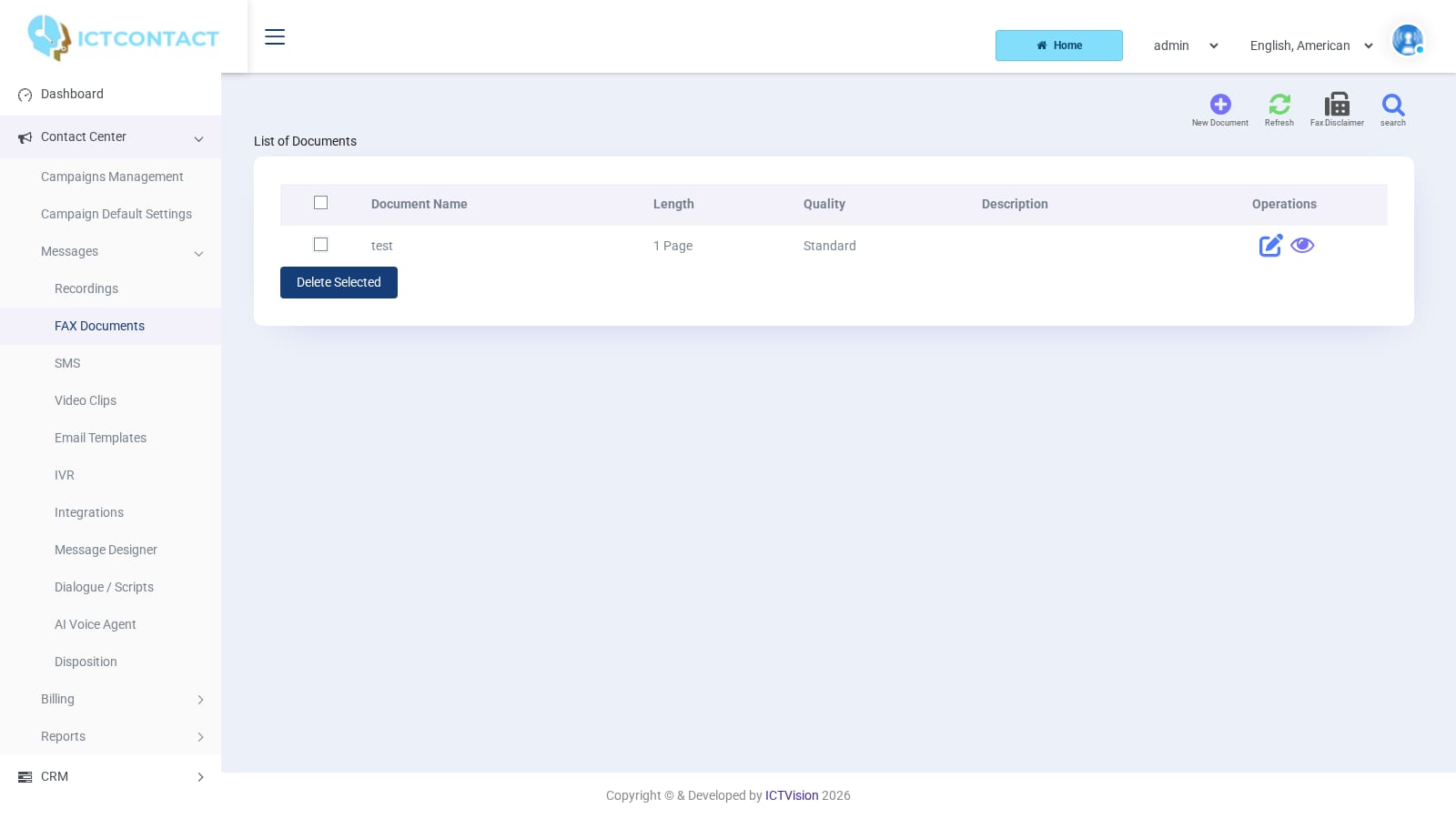
The columns are Document Name, Length, Quality, Description and Operations.
- Length is the page count of the converted TIFF. It's filled in after the upload, so it gives you a quick check that a multi-page PDF came through whole.
- Quality is the setting you chose when you uploaded.
- Operations has two icons, Edit Document and View Document. View opens a small popup with the first page rendered as an image.
The top buttons are search, New Document, Refresh and Fax Disclaimer. The form has Save, Reset and Cancel. Delete Selected removes the documents you've ticked.
The search panel filters on Document (a dropdown of names), Length, Quality and Date.
Adding a document
- Click New Document.
- Under Document, enter Document Name and Description. The name is required. It can only contain letters, digits and underscores, so spaces and other characters are rejected. It also has to be unique within your account.
- Under FAX Document, choose Fax quality.
- In File Name, pick the file to upload (required).
- Click Save. The conversion happens during the save, and large PDFs take a few seconds.
Editing a document re-runs the same form. You need a new file on every save, so even if you only want to change the description, you still have to pick the file again.
Quality options
| Option | Resolution used for the TIFF |
|---|---|
| Standard | 204 x 98 dpi |
| Fine | 204 x 196 dpi |
| Superfine | 204 x 391 dpi |
Standard is enough for text. Fine is the safe choice for anything with small print or logos. Superfine doubles the vertical resolution again. That makes the fax take longer to send, and some receiving machines fall back to Fine anyway. We normally leave it on Fine.
Accepted file types
You can upload PDF, TIFF (.tiff or .tif), plain text (.txt), HTML (.html or .htm) and JPEG (.jpeg or .jpg). Anything else is refused with "Not a recognized file type".
Every upload is converted to a black-and-white Group 3 TIFF:
- a PDF is rasterised through Ghostscript
- a TIFF is passed through
- text is printed to PostScript first
- a JPEG is converted to monochrome
Colour and greyscale are lost. If the original relied on shading, check the preview.
Fax Disclaimer
The Fax Disclaimer button opens the Fax Disclaimer Messages page. A disclaimer is itself a document from this library, usually a one-page cover or footer sheet.
- Default Disclaimer: the document used when a campaign doesn't choose one.
- Available Disclaimers: a multi-select of the documents that can be offered as disclaimers in the campaign wizard.
Once you open the page, both fields are required, so upload the disclaimer document first. The buttons are Save, Reset, Refresh and Back.
The page has a note about "the body part of the selected document". It's inherited from the email template screen and doesn't apply to fax. On a fax call, the disclaimer is sent as a second document straight after the main one, on the same call.
Using a document in a Fax Campaign
- Go to Contact Center > Campaigns Management > Add, then pick the Fax Campaign card under Fax SMS, Email, & Video Broadcasting.
- In the FAX Campaign Configuration step, choose the FAX Document (required). If your account has the disclaimer permission, you'll also see a Fax Disclaimer dropdown. It starts at Select a Disclaimer. If the system is set to enforce a disclaimer, you must pick one.
- In the settings step, set Max. Concurrent Channels, Max. Retries (or [Disabled]), Suggested dialing order, Max. Call Duration in seconds and Max.ring time in seconds.
- Finish the wizard as you would for any other campaign, and start it.
Fax campaigns have no Inbound mode, so the Campaign Mode list leaves it out. Max. Call Duration in seconds is pre-filled from the system default (600 seconds on a stock install), and Max.ring time in seconds with 45. For long documents, raise the duration. Remember that a disclaimer adds its own pages to the same call. The pages actually sent are recorded against the call. Where the fax service is billed per page, they become the call amount.
Stuck on something this guide does not cover? Open a support ticket or browse the other guides.
Try the live demoSee pricing