Run separate client accounts on one system, each with its own users, credit and limits.
A client is a tenant. It owns its own campaigns, contacts, recordings, agents, DIDs and credit balance, and nothing it does is visible to another client. Resellers run one client per customer.
Prefer to watch? Tutorial 6: Users, clients and multi-tenant setup. The screens show the ICTContact name because ICTCRM runs on it.
Two things are easy to mix up, so let's start there:
A client record (Administration > Client Management) holds the balance, plan, channel limit and feature grants.
A user record (Administration > User Management) is a login. It's owned by a client and inherits that client's limits.
A client without a user can't log in, and a user without a client has nothing to work with. On a fresh install the pre-configured client is called master. Out of the box it has 50 channels, and the admin login belongs to it.
Add a client
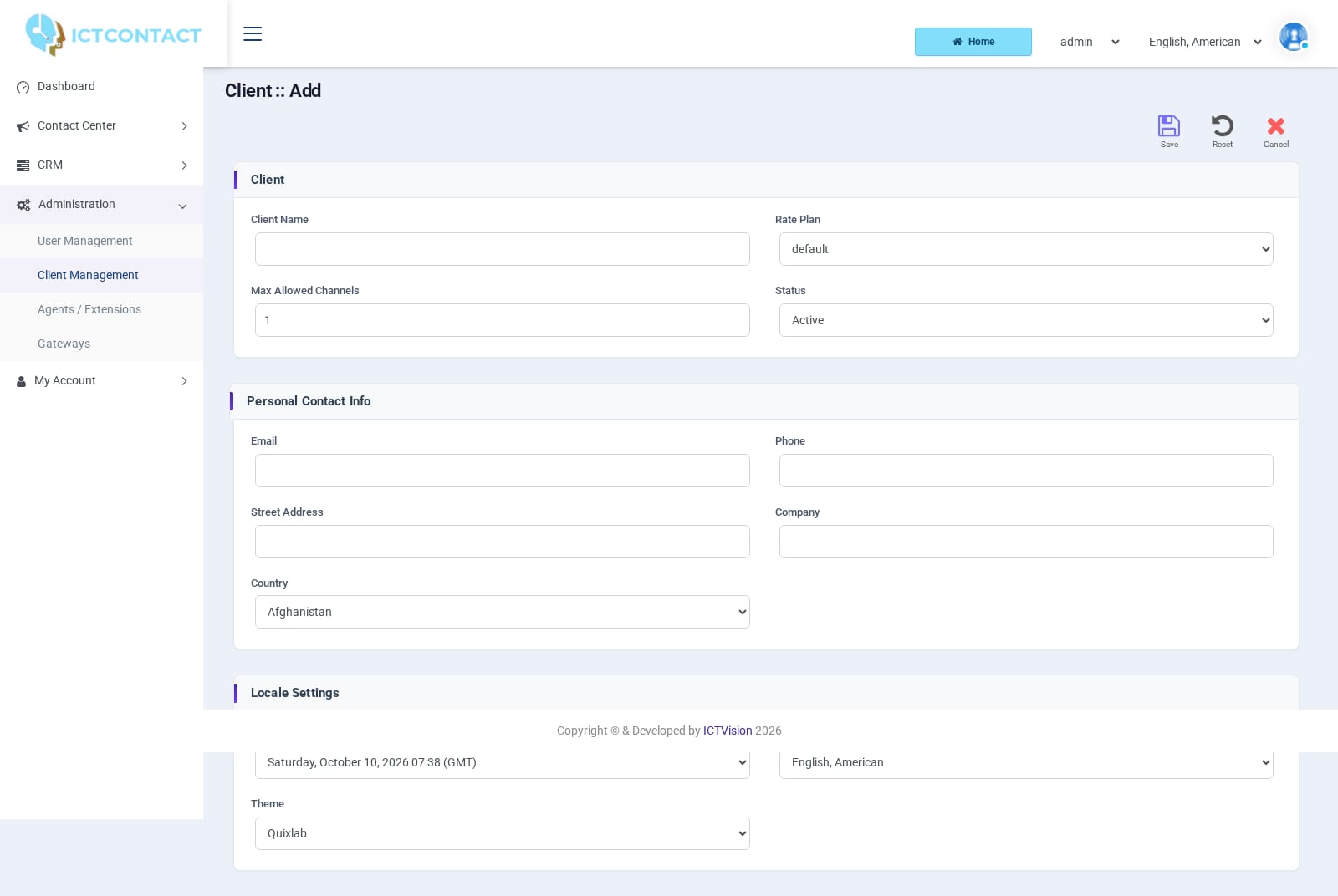
Go to Administration > Client Management and click New Client.
Client Name: letters, digits, dot, dash and underscore only. You can't change it after saving.
Rate Plan: the plan whose rates this client is charged at (see the Billing, Routes and Rate Plans guide). It's required when billing is licensed.
Max Allowed Channels: the most concurrent calls this client may run across all its campaigns. At least 1. A campaign's Max. Concurrent Channels is capped by this number.
Status: Active or Disabled.
Personal Contact Info: Email (required), Phone, Street Address, Company, Country.
Locale Settings: Timezone offset, Language, Theme. The timezone matters for campaign schedules and for the allowed time slot described below.
Click Save.
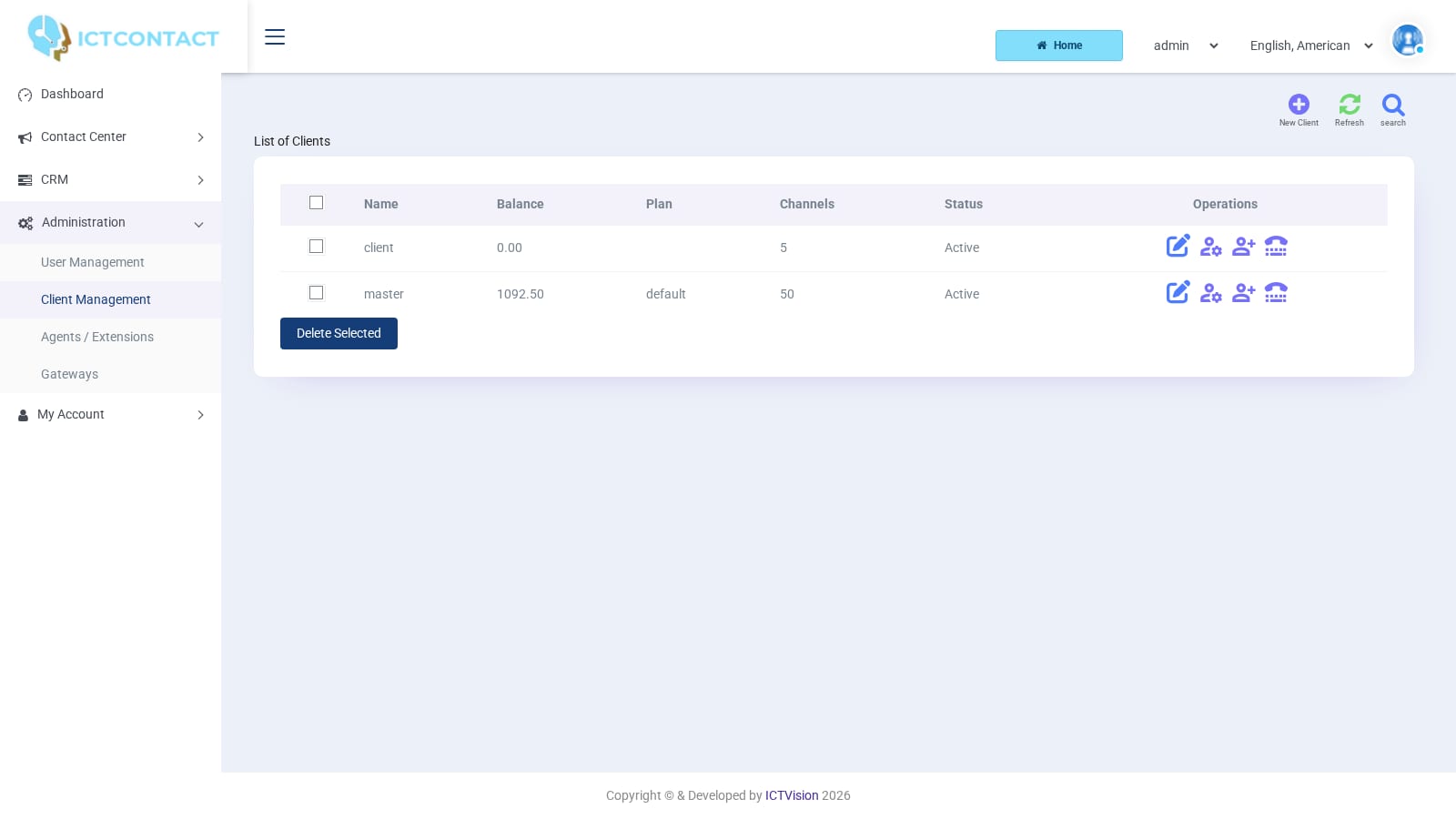
The list shows Name, Balance, Plan, Channels, Phone, Email, Company, Status and Operations. There's a Filter Settings box (Plan, Company) and a Delete Selected button for the rows you've ticked.
Row operations
Each row has four icons. Hover over one to read its tooltip.Edit Client reopens the form above.Assign / Remove Resources (userresource.php) controls when and what the client may dial:
Allowed Time Slot to run campaign: Range From and Range To (hour and minute). Campaigns don't dial outside this window. The Applied timezone line tells you which timezone the range is evaluated in. It's the client's own.
Allowed Weekdays: a checkbox for each day.
Permissions: Allow manual dialing, Allow Fax campaign, Allow Survey campaign, Allow Interactive campaign, Allow IVR campaign, Allow Subcription campaign; Allow DID as CallerID, Allow anonymous CallerID, Allow custom CallerID, Allow CallerID list; Can only use dedicated trunk, Can select trunk for campaign.
The caller ID boxes decide which Caller ID Type options the client sees in the campaign wizard. Tick the last two together and the client's campaign form gets a Select Trunk field. Without them, the trunk is always chosen through Billing > Routes.Assign / Remove extensions (userextension.php) shows List of Assigned Extensions and List of Available Extensions (columns Extension, SIP, IAX). Tick rows and click Assign Selected or Remove Selected. An extension is an agent login, so this is how you give a client its agents. You create the extensions themselves under Administration > Agents / Extensions.Assign / Remove DIDs (userdid.php) works the same way, with List of Assigned DIDs and List of Available DIDs (DID, Description). It only shows up when the inbound module is licensed. Once you assign a DID, the client can use it as caller ID (if Allow DID as CallerID is ticked) and point it at an IVR or agent under DID Forwarding.
Give the client a login
Go to Administration > User Management and click New User.
Enter User Name, then for Owned By pick the client you just created.
Set Status to Active and User Role to user. (Pick supervisor for a team lead who should only monitor agents.)
Fill in Password, Retype Password, Email, the name and contact fields, Timezone offset, Language and Theme. Click Save.
The client now logs in on the login page with Login as User and sees the tenant portal: its own campaigns, contacts, reports and My Account, but not Administration. You can create more than one user for the same client. They share the balance and the limits.
Add credit
Go to Contact Center > Billing > Payments and click New Payment. The fields are Paid By (the client), Comments, Total Paid Amount (a positive number), Payment Type (Cash, Cheque, Online Payment, Other) and Date paid on. Saving adds the amount to the client's Balance.The payment list shows User Name, Amount, Type, Date and Comments, with a filter on Client, Company, Amount, Payment Type and Date. Deleting a payment row takes the same amount back off the balance. That's the only way to reduce credit from the GUI. A client can see its own payments under My Account > Payments.When the balance runs out, a running campaign stops on its own and the campaign list shows Stopped (not enough credit, reserve-credit is: ...). Add a payment and start it again.
Suspending a client
Set Status to Disabled on the client form. From then on none of that client's users can log in. The login check only loads active clients, so they get the wrong-username-or-password style failure even with the right password.Nothing else happens automatically. Campaigns that are already running keep running and keep spending credit until you stop them yourself under Contact Center > Campaigns Management. The client's agents can still log in to the agent panel with their extension.To suspend a client fully:
Stop the campaigns.
Set Status to Disabled.
If the agents must go too, remove the extensions under Assign / Remove extensions.
Setting a user to Disabled in User Management blocks that one login only.
Reseller notes
Trunks belong to the system by default. To let clients use one, open Administration > Gateways, click [Assign] on the trunk and set Assigned to to Available to clients (and pick the client) or Available to plans.
Channels are how you sell capacity: Max Allowed Channels per client, Max. Channel Capacity per trunk, Max. Concurrent Channels per campaign. The dialer uses the smallest of the three.
Your margin is the difference between the trunk cost and the rate in the client's plan. The admin sees it on the dashboard as Daily, Monthly and ALL Profit.